How do I determine what ESXi and vCenter builds I am running?

When starting a new VMware project or evaluating new features, it’s always good to start with the latest and greatest software versions. The following describes how to figure out what ESXi, vCenter, and Web Client you are currently running and if they are the latest build number. If not, you should consider upgrading.

Where can I find a list of VMware software versions and build numbers?

VMware vSphere and vCloud suite build numbers table:

http://kb.vmware.com/selfservice/microsites/search.do?language=en_US&cmd=displayKC&externalId=1014508

How do I determine what ESXi build am I running?

Via the vSphere Web Client

  • Log into the VMware vSphere Web Client
  • Select a host
    • Home à Hosts and Clusters à Datacenter à Cluster à Host
  • Select Summary tab
  • Find the Configuration box (likely somewhere at the bottom right of screen)
  • “ESX/ESXi Version” will tell you the version and build number

ESXi build

Via command line

  • Log into the ESXi Shell of a host either by enabling local access and use the local shell on the physical console or enable SSH access and connect via an SSH tool like PuTTY.
  • Execute the following command
    • vmware –vl
  • Results will look something like this:
    • VMware ESXi 5.5.0 build-???????
    • VMware ESXi 5.5.0 Update 1

vmware -vl

How do I determine what vCenter build am I running?

  • Log into the VMware vSphere Web Client
  • Locate the vCenter Server in the inventory tree
    • Home à vCenter à Inventory Lists à vCenter Servers à vCenter Server
  • Select the “Summary” tab
  • The version is listed in the “Version Information” pane on the right (see screenshot)

vCenter build

How do I determine what vSphere Web Client build am I running

  • On the vSphere Web Client
  • Help —> About VMware vSphere
  • The version is listed in the “Version Information” pane on the right (should look something like)
    • vSphere Web Client: Version 5.5.0 Build ???????

WebClient build

Virtual SAN Software Defined Self Healing

I think one of the hidden gem features of VMware Virtual SAN (VSAN) is it’s software defined self healing ability.  On the surface this concept is simple.  The entire pool of disks in VSAN are used as hot spares.  In the event of a failure, data from the failed disks or hosts are found on other disks in the cluster and replicas (mirrors) are rebuilt onto other disks in the cluster to get back to having redundant copies for protection.  For VSAN, the protection level is defined through VMware’s Storage Policy Based Management (SPBM) which is built into vSphere and managed through vCenter.  OK, lets get into the details.

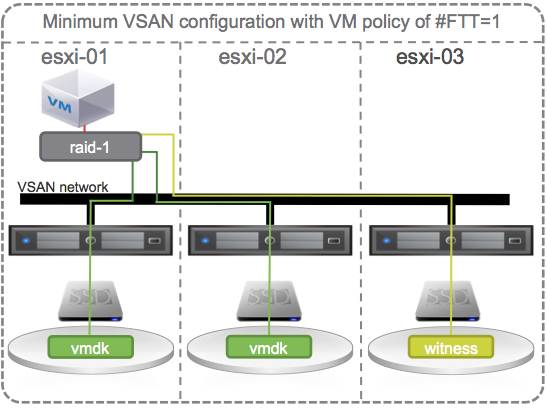
Lets start with the smallest VSAN configuration possible that provides redundancy, a 3 host vSphere cluster with VSAN enabled and 1 SSD and 1 HDD per host.  And, lets start with a single VM with the default # Failures To Tolerate (#FTT) equal to 1.  A VM has at least 3 objects (namespace, swap, vmdk).  Each object has 3 components (data 1, data 2, witness) to satisfy #FTT=1.  Lets just focus on the vmdk object and say that the VM sits on host 1 with copies of its vmdk data on host 1 and 2 and the witness on host 3.

Minimum VSAN configuration with VM policy of #FTT=1

OK, lets start causing some trouble.  With the default # Failures To Tolerate equal 1, VM data on VSAN should be available if a single SSD, a single HDD, or an entire host fails.

Continue reading “Virtual SAN Software Defined Self Healing”

Configuring HP Smart Array P420i I/O Controller for VSAN

I’ve been working with many customers over the last several months and found that many are very familiar with HP hardware and just know how to set things up.  Others are looking for guidance from VMware on how to configure for VSAN.  There are things I’ve discovered that might not be obvious but can help in the VSAN setup.  Bear in mind, I am not an HP server hardware expert, so your comments are greatly appreciated.

Before I go too far, there is a bug in the HP async controller driver for the HP 420i that is included in the HP ESXi image.  The bug reduces the queue depth to 28, instead of 1020, causing poor performance in VSAN.

Here’s how to check your hosts IO Controller (storage adapter) queue depth:

  • Run the esxtop command on the ESXi shell / SSH session
  • Press d
  • Press f and select Queue Stats (d)
  • The value listed under AQLEN is the queue depth of the storage adapter

To resolve, follow these directions to implement the correct driver:

HP ProLiant Smart Array Controller Driver for VMware vSphere 5.5 (VIB file)

OK, a little background/overview on I/O Controller guidance for VSAN.  In general, VSAN recommends disabling Read and Write cache for any I/O Controller.  Since VSAN handles Read and Write caching at the software layer, there’s no need to do it at the hardware level.  Also, when destaging write cache, we want to ensure that the writes are committed to disk and not in I/O Controller cache.

In the case of the HP P420i, you cannot disable the I/O Controller cache so VSAN recommends setting it to 100% Read which essentially disables Write cache.  I recently discovered that you can also selectively pick and choose which disks to enable cache for.

Continue reading “Configuring HP Smart Array P420i I/O Controller for VSAN”

Virtual SAN Disaster Recovery – vSphere Replication (available now) or Virtual RecoverPoint (coming soon), choose your protection!

I’m often asked how to protect Virtual SAN (VSAN). Its simple, any product focused on protecting a virtual machine (VM) will work for protecting VM’s sitting on a VSAN enabled vSphere cluster. VMware offers VDP/VDPA for backup & recovery and there are many other VMware partners with backup & recovery solutions focused on protecting VM’s. Backup & Recovery is a great way to protect data but some customers like the benefit of more granular recovery points that comes from data replication either locally or to a disaster recovery site.

To protect VSAN data in a primary site to a remote disaster recovery site VMware offers vSphere Replication (VR) to replicate the VM data sitting on a VSAN Datastore over the DR site. Of course Site Recovery Manager (SRM) is supported to automate failover, failback and testing. The VR/SRM combined solution can also be used for planned data center migrations. Here are a few great write-ups on the topics:

VMware Virtual SAN Interoperability: vSphere Replication and vCenter Site Recovery Manager

Virtual SAN Interoperability – Planned migration with vSphere Replication and SRM

VSAN and vSphere Replication Interop

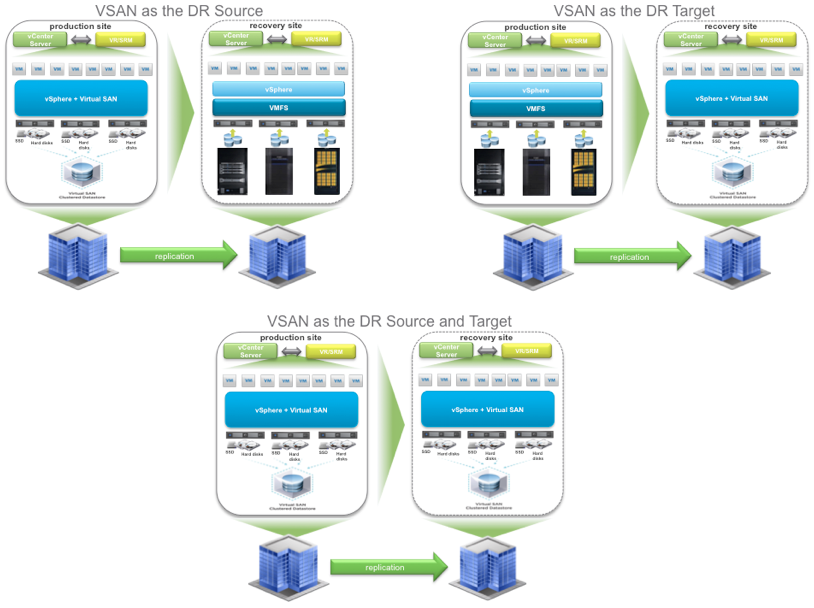
One of the main benefits of VR is that it will work to replicate VM data on any storage to another site with hosts connected to any other storage. So, VSAN can be the source, the target, or both.

VSAN & VR


vSphere Replication can be set to asynchronously replicate every day, hour, or up to every 15 minutes. Thus providing a Recovery Point Objective (RPO) of up to 15 minutes. For many customers, this is “good enough”. For some customer workloads, asynchronous replication is not “good enough”. They need synchronous replication protection and there are several solutions in the market. One that I’ve been a big fan of for a long time is EMC’s RecoverPoint which has a great reputation for protecting enterprise mission critical data and applications.  Essentially it splits every write transaction, journals it, and synchronously makes a copy of it either locally or to a remote DR site without impacting application performance. Of course there are more details but this is essentially what it does which results in being able to recover back to any point in time. Often it’s labeled as “Tivo or DVR for the data center”. One other benefit of RecoverPoint is it can replicate data from any storage to any storage, as long as there is a splitter for the storage. EMC VNX and VMAX storage arrays have splitters built in.

The big news that just came out last week that peeked my interest is that EMC is now offering a Beta of a completely software based RecoverPoint solution that embeds the splitter into vSphere. This brings the RecoverPoint benefits to any VMware customer running VM’s on any storage: block, file, or of course even VSAN. The EMC initiative is call Project Mercury and for more information check out:

Summer Gift Part 1 – Project Mercury Beta Open!

I’m excited that VSAN customers will have a choice for data protection, asynchronously with 15 minute RPO using vSphere Replication or continuous, synchronous, and asynchronous with EMC’s Virtual RecoverPoint.

Montreal Loves VSAN!

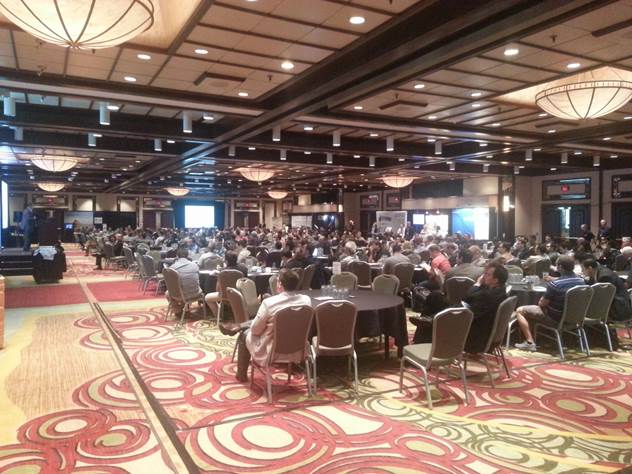
Last week I had the good fortune to support the Montreal VMware vForum.  There were over 418 participants and 21 partner booths.  A packed house at the Hilton Montreal Bonaventure which was a great facility.

MontrealForum1

There were multiple keynote presentations throughout the day as well as break out sessions on a wide variety of topics.  In the morning session I was able to share the benefits of VSAN to the entire crowd and let everyone know about the Hands on Lab we setup for attendees to try out VSAN.


We setup 10 Chromebook workstations that were occupied the whole day.  A total of 86 customers took the VSAN lab and the feedback was overwhelmingly positive.  Both about VSAN and the fact that we made the labs available during the day.

MontrealForumVSANlab

At the end of the day there was an after party during which we gave away the Chromebooks to lucky winners while everyone was enjoying their favorite beverage.

A special thanks to our VMware friends, partners, and especially customers for helping make this a great day!  Montreal is a great city and now we know Montreal Loves VSAN!

I look forward to the next big event: Boston VMUG User Conference.

What is the RAW to Usable capacity in Virtual SAN (VSAN)?

I get asked this question a lot so in the spirit of this blog it was about time to write it up.

The only correct answer is “it depends”. Typically, the RAW to usable ratio is 2:1 (i.e. 50%). By default, 1TB RAW capacity equates to approximately 500GB usable capacity. Read on for more details.

In VSAN there are two choices that impact RAW to usable capacity. One is the protection level and the other is the Object Space Reservation (%). Lets start with protection.

Virtual SAN (VSAN) does not use hardware RAID (Disclaimer at the end). Thus, it does not suffer the capacity, performance, or management overhead penalty of hardware RAID. The raw capacity of the local disks on a host are presented to the ESXi hypervisor and when VSAN is enabled in the cluster the local disks are put into a shared pool that is presented to the cluster as a VSAN Datastore. To protect VM’s, VSAN implements software distributed RAID leveraging the disks in the VSAN Datastore. This is defined by setting policy. You can have different protection levels for different policies (Gold, Silver, Bronze) all satisfied by the same VSAN Datastore.

The VSAN protection policy setting is “Number of Failures to Tolerate (#FTT) and can be set to 0, 1, 2, 3. The default is #FTT=1 which means using distributed software RAID there will be 2 (#FTT+1) copies of the data on two different hosts in the cluster. So if the VM is 100GB then it takes 200GB of VSAN capacity to satisfy the protection. This would be analogous to RAID 1 on a storage array. But rather than writing to a disk then to another disk in the same host we write to another disk on another host in the cluster. With #FTT=1, VSAN can tolerate a single SSD failure, a single HDD failure, or a single host failure and maintain access to data. Valid settings for #FTT are 0, 1, 2, 3. If set to 3 then there will be 4 copies of the VM data thus RAW to usable would be 25%. In addition, there is a small formatting overhead (couple of MB) on each disk but is negligible in the grand scheme of things.

#FTT # Copies
(#FTT+1)
RAW-to-usable Capacity %
0 1 100%
1 2 50%
2 3 33%
3 4 25%

Perhaps you create the following policies with the specified #FTT:

  • Bronze with #FTT=0 (thus no failure protection)
  • Silver policy with #FTT=1 (default software RAID 1 protection)
  • Gold policy with #FTT=2 (able to maintain availability in the event of a double disk drive failure, double SSD failure, or double host failure)
  • Platinum policy with #FTT=3 (4 copies of the data).

Your RAW to useable capacity will depend on how many VM’s you place in the different policies and how much capacity each VM is allocated and consumes. Which brings us to the Object Space Reservation (%) discussion.

In VSAN, different policy can have different Object Space Reservation (%) (Full Provisioned percentages) associated with them. By default, all VM’s are thin provisioned thus 0% reservation. You can choose to fully provision any % up to 100%. If you create a VM that is put into a policy with Object Space Reservation equal to 50% and give it 500GB then initially it will consume 250GB out of the VSAN Datastore. If you leave the default of 0% reservation then it will not consume any capacity out of the VSAN Datastore but as data is written it will consume capacity per the protection level policy defined and described above.

That ended up being a longer write up than I anticipated but as you can see, it truly does depend. I suggest sticking to the rule of thumb of 50% RAW to usable. But if you are looking for exact RAW to usable capacity calculations you can refer to the VMware Virtual SAN Design and Sizing Guide found here. https://blogs.vmware.com/vsphere/2014/03/vmware-virtual-san-design-sizing-guide.html
Also, you can check out Duncan Epping’s Virtual SAN Datastore Calculator: http://vmwa.re/vsancalc

Disclaimer at the end: ESXi hosts require IO Controllers to present local disk for use in VSAN. The compatible controllers are found on the VSAN HCL here: http://www.vmware.com/resources/compatibility/search.php?deviceCategory=vsan

These controllers work in one of two modes; passthrough or RAID 0. In passthrough mode the RAW disks are presented to the ESXi hypervisor. In RAID 0 mode each disk needs to be placed in its own RAID 0 disk group and made available as local disks to the hypervisor. The exact RAID 0 configuration steps are dependent on the server and IO Controller vendor. Once each disk is placed in their own RAID 0 disk group you will then need to login via SSH to each of your ESXi hosts and run commands to ensure that the HDD’s are seen as “local” disks by Virtual SAN and that the SSD’s are seen as “local” and “SSD”.

I hope this is helpful. Of course questions and feedback is welcome.

Virtual SAN (VSAN) Beta, now 17% larger!

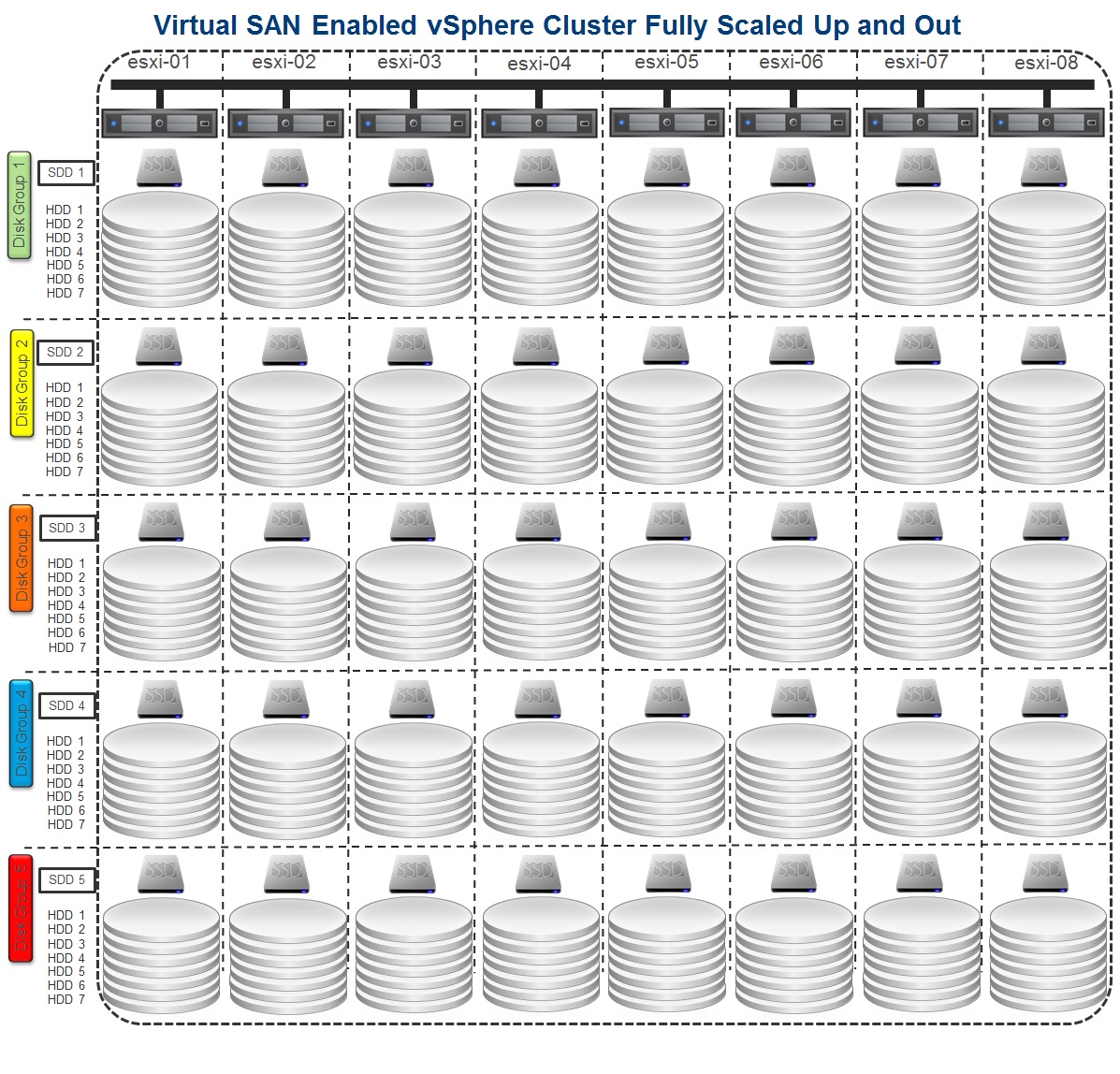
In a previous post here I detailed the Scale Up and Scale Out capabilities of VSAN.  It looks like I’ll need to redo my diagrams since Virtual SAN just increased the number of HDDs in a disk group from 6 to 7.  That’s a 17% increase in RAW capacity.  The number of SSD’s remain 1 per disk group, 5 per host, 40 per 8 host cluster.  With the increase from 6 to 7 HDD’s per disk group you can now have 35 HDD’s per host and in an 8 host cluster an increase from 240 to 280 HDD’s.  That’s an extra 40 HDD’s which translates to a ton of extra RAW capacity.

Virtual SAN Enabled vSphere Cluster Fully Scaled Up and Out 2

To support this increase you’ll need to download the recently released VSAN Beta code found on the VMware Virtual SAN Community page.

Also check out this great post on Virtual SAN – Sizing Considerations.

Does Virtual SAN (VSAN) Support Blade Servers?… Yes!

Yes, Virtual SAN (VSAN) can be supported on blade servers. VSAN will predominantly be deployed on rack mount servers but I continue to run into customers that are blade shops and they want to take advantage of VSAN.

Option 1

Without going into detail about specific vendors and their hardware options, many blade server vendors support 2 or more SFF SAS/SATA/SSD in their blades.  Make one of those an SSD and the other a SAS/SATA and you are good to go for VSAN.  Put at least 3 blades configured like this or up to 8 (max for VSAN Beta) into a VSAN enabled cluster.

Option 2

Take 3 rack mount servers and install at least 1 SSD and 1 HDD in each or up to 5 SSD and 30 HDDs (max for VSAN Beta).  Put these 3 rack mount servers and up to 5 blade servers (with or without disks) into a VSAN enabled cluster for a total of up to 8 hosts (max for VSAN Beta) into a VSAN enabled cluster.

I have also been asked several times if VSAN will support JBOD that could be connected to blades.  For the Beta, the answer is no but the VSAN Beta program customer feedback is being taken seriously and product roadmaps will be set accordingly.  So the best recommendation is to sign up for the VSAN Beta (http://vsanbeta.com/) if you haven’t already, give VSAN a try, and get active on the VSAN Beta community by doing the following:

  1. Register for a My VMware account here (If you already have one skip to the next step)
  2. Sign the terms of use here (one time only)
  3. Access the VMware Virtual-SAN Beta community website.

Feel free to leave comments about any other interesting ways to deploy VSAN and use cases for it.

VMware VSAN Beta Highlights & Best Practices

I had the pleasure of speaking at one of the breakout sessions at the DFW VMUG in Dallas, TX this past week.  To prepare I was able to talk to Cormac Hogan who is VMware’s Senior Technical Marketing Architect for VSAN.  Cormac is a wealth of knowledge so I also spent a lot of time absorbing the great articles in his blog http://cormachogan.com/ and his VSAN demos here.  Additionally I found good stuff on Duncan Epping’s http://www.yellow-bricks.com.  In 45 minutes I couldn’t do a deep dive so I had to stick to the highlights which I’ve listed below.  Bear in mind this is related to the VSAN beta that just recently went live.  If you haven’t already done so, sign up at http://vsanbeta.com/.

VSAN Highlights

  • vSphere 5.5 & vCenter 5.5 required – VSAN is built into vSphere & management is through the Web Client for vSphere 5.5.
  • Min 1 SSD & 1 HDD per host, Max 1 SSD & 6 HDD per disk group, Max 5 disk groups per host
  • Min 3 Hosts, Max 8 Hosts, Max 1 VSAN datastore per cluster (support for more hosts may increase in the future)
  • Max vsanDatastore = (8 hosts * 5 disk groups * 6 disks * size of disks) = 240 * size of disks
  • Capacity based on HDD only. SSD do not contribute towards capacity, used as read cache and write buffer
  • Can provision individual VMs with different profiles on the same VSAN datastore
  • Data stripes and copies can be anywhere in the cluster (no locality of reference)
  • SAS/SATA Raid Controller must work in “pass-thru” or “HBA” mode (no RAID)

VSAN Best Practices

  • Host Boot image: no stateless, preferred is to boot using SDcard/USB
  • SSD should be Min 10% of HDD Capacity (e.g. 1 GB of SSD to every 10 GB of SAS/SATA)
  • Disparate hardware configurations are supported but best practice is to use identical host hardware configurations (same #, capacity, performing disks)
  • Dedicated 10Gb (1GB is supported) network for VSAN. NIC team of 2 x 10Gb NICs for availability purposes
  • Not much sense to enable vSphere Flash Read Cache (VSAN uses SSD for cache)
  • VSAN VM Policy Management – Leave at default unless specific need to change
    • Number of Disk Stripes Per Object: Default = 1; Max = 12
    • Number of Failures To Tolerate: Default = 1; Max = 3
    • Object Space Reservation: Default = 0%, Maximum = 100%
    • Flash Read Cache Reservation: Default = 0%, Maximum = 100%
    • Force Provisioning: Default = Disabled

I hope this helps summarize what VSAN is all about.  I was excited to get many great questions from the audience and to see how excited they all were about VSAN.  I’m looking forward to how the Beta goes and how people like it!

Best Practices for VM Swap File Locations and Guest OS Page Files when using EMC Storage

I cannot take credit for this post, I posed the question regarding “Best Practices for locating the Virtual Machine swap file and several vSpecialist responded with number of great answers / opinions / recommended best practices for that and for Guest OS Paging. So thanks to Robert Way, Rajeev Dawar, Rich Barlow, Itzik Reich, Scott Drummonds, and Erik Zandboer for their contributions.

Here’s one of the best general reads on this topic.  “(Alternative) VM swap file locations Q&A” http://frankdenneman.nl/vmware/alternative-vm-swap-file-locations-qa/

The general consensus is that if you are swapping you are screwed.  Once swapping starts, very bad things are already happening, so a design that is centered around identifying and stopping swap as soon as it happens is best.  Sure, EMC would love it if you put your swap files on EMC Flash technology to reduce the performance impact of swapping.  But this might not be the best use of Flash resources if you are concerned about cost, and who isn’t?  If you’ve done a good job architecting your VM’s then you shouldn’t be overcommitting memory and thus it shouldn’t really matter where you put the swap files.  So in general you could keep things simple and just accept the default “Virtual machine directory – Store the swap files in the same directory as the virtual machines”.  With EMC’s FAST VP technology on the VNX and VMAX, if the swap files are not used then they will be migrated to the lowest tier.

There are several good reasons to choose the option: “Datastore Specified by host – Store the swap files in the datastore specified by the host to be used for swap files.  If not possible, store the swap files in the same directory as the virtual machine.”

  • Capacity –  The VM swap file space can add up for a large number of VM’s so isolating them to a separate datastore can provide some efficiencies.
  • Replication – The VM swap file should be in a non-replicated datastore.  If swapping is occurring then the blocks are constantly changing thus it will be constantly replicated possibly resulting in a very busy WAN link resulting in poor performance and a nightmare for VMware Site Recovery Manager (SRM).
  • Snapshot – Similar to replication, the VM swap file swap should not be on a datastore with snapshots enabled.  This will save on storage capacity and provide better overall efficiency.
  • Backup – Similar to replication, the VM swap file should be on a datastore that is not backed up in order to skip scanning and backing up swap file data.   Here’s a good reference: “What Do You Do With Your Swap File? – VMworld Update, Thursday” http://thebackupwindow.emc.com/alex_almeida/what-do-you-do-with-your-swap-file-vmworld-update-thursday/
  • Troubleshooting – isolation helps in finding guest OS issues but resolving the underlying overcommit issues should be the focus.  Here’s a good reference: “Storing a virtual machine swap file in a location other than the default” http://kb.vmware.com/selfservice/microsites/search.do?language=en_US&cmd=displayKC&externalId=1004082

And a reason to keep the VM swap files on a shared datastore versus a local datastore:

  • vMotion Performance – If the destination host cannot see the swap file then it creates a new swap file and potentially copies swapped memory from the source.  This can increase the time it takes to perform a vMotion but might be a worthy tradeoff to leveraging the host’s local disk.

If you have a good number of virtual machines then based on what’s written above, there are more compelling reasons to choose to put your VM swap files in a different location.  The next question is “Where do you put them?”  If you agree that if your swapping you’re screwed anyway then it makes sense to just put them somewhere cheap and forget about it.  Here is some guidance related to EMC storage.

Option 1 – Put them somewhere cheap and monitor closely for swapping

Create a LUN or volume on the least expensive storage tier.  This could be a dedicated NL-SAS or SATA disk group or with EMC FAST VP technology you could force the LUN to the lowest tier.  Connect all the hosts in the cluster to this datastore and use it as a consolidated location for all the VM swap files in the cluster.  Since the performance will be horrible if swapping occurs, the IO’s to this datastore should be closely monitored and if the alarm triggers then spring into action and go stop the swapping.

Option 2 – Let FAST VP do its thing

Create a LUN or volume in a FAST VP pool.  With EMC’s FAST VP technology on the VNX and VMAX, if the swap files are not used then they will be migrated to the lowest tier, thus the most cost effective tier for swap files.  You could also force the LUN or Volume to the lowest tier upon creation.  Connect all the hosts in the cluster to this datastore and use it as a consolidated location for all the VM swap files in the cluster.  Then, as in Option 1, monitor the IO’s.

Option 3 – Plan for good performance if swapping occurs

There may be some applications where you do not want to risk poor performance if swapping occurs.  Or, there may be applications that heavily utilize the available swap space.  One such application is SAP.  This is where Flash technology can dramatically help.  There are a few choices here:

  1. Create a LUN or volume in a FAST VP pool on a VNX or VMAX that included EFD’s and force the LUN or Volume to the highest tier upon creation.  Connect all the hosts in the cluster to this datastore and use it as a consolidated location for all the VM swap files in the cluster that you care about swap performance.
  2. Install a VF Cache card on the host and dedicate a portion of it as local storage.  Then create a datastore using this local storage and point the VM swap files to it.  The swap file performance will be great but the vMotion performance will be impacted since other hosts cannot see this storage.
  3. Leverage local EFD’s on the server to create a datastore and point the VM swap files to it.  The swap file performance will be good but the vMotion performance will be impacted since other hosts cannot see this storage.
  4. Create a LUN or volume on EMC’s “Project X” (XtremIO) all-cache-array and point the VM swap files to it.  Other factor to consider is if you are starting a large number of VM’s in a short time (E.g. VDI) then the creation of the VM swap files can cause an impact to performance.  This should be considered in deciding the location of VM swap files.  “Project X” shines in this use case but is not available today so stay tuned in 2013.

It’s important to note that the above discussion was around ESX host swapping.  Don’t forget about the other swapping: in the guest OS.  For this we used the term “paging” to differentiate it from ESX swapping.  If you really want to fully manage paging you should create a virtual disk for each guest OS’s page file on the same datastore as the VM swap file.  Then if you are monitoring for IO’s to that datastore, the storage alarm will detect host swapping or guest paging.

Summary

To keep things simple you can leave the VM swap file and OS page file in the default locations, place the VM in cluster with a shared datastore backed by a LUN or volume in a FAST VP pool, and monitor IO’s closely.

If you want to gain maximum efficiency then choose a location other than the default for the VM swap file and OS page file, place them on a datastore that is backed by the lowest tier of storage (e.g. NL-SAS RAID group or a FAST VM pool with NL-SAS), and monitor IO’s closely.

If you are concerned with performance if swapping occurs then choose a location other than the default for the VM swap file and OS page file and place them on a datastore that is backed by the Flash technology either on the array or host.

As always, questions, comments, feedback is welcome.