Best Practice for Preparing Hardware for a Virtual SAN Deployment

This may be stating the obvious but I think it’s worth repeating. Before building a Virtual SAN enabled cluster make sure:

  • The server hardware is updated to the latest and greatest system ROM / BIOS / firmware
  • The IO Controller is running the latest firmware
  • The SSD are running the latest firmware
  • The HDD are running the latest firmware

These firmware updates often resolve some important hardware issues.

Next, make sure you follow the Performance Best Practices for VMware vSphere® 5.5

  • Specifically, make sure Power Management BIOS Settings are disabled in the server BIOS (see page 17)

Once ESXi is installed on the host

  • Make sure the IO Controller is loading the correct version of the device driver.  You can look this up on the Virtual SAN HCL

I work with a lot of customers who are evaluating or implementing Virtual SAN and following these simple, obvious, but important best practices have led to better performance and a better overall experience with Virtual SAN.

XvMotion, Cross-vCenter vMotion, VVols, LVM active/active, LVM active/passive, SRM & Stretched Storage, VAIO Filters

Recently, with the announcement of the availability of VVols in vSphere.NEXT I was asked to give a deep dive presentation to a customer with a focus on what VVols meant for protection VM’s. While at EMC as a vSpecialist I lead a group focused on protecting VM’s so this is something I’ve been interested in for awhile. I’m a big fan of RecoverPoint and am excited about virtual RecoverPoint’s ability to offer continuous data protection for VSAN as I indicated here.   I’m also a huge fan of VPLEX and spent a lot of time during my days at EMC discussing what it could do. The more I dug into what VVols could do to help with various VM movement and data protection schemes the more I realized there was much to be excited about but also much need for clarification. So, after some research, phone calls, and email exchanges with people in the know I gathered the information and felt it would be good information to share.

What follows is kind of a “everything but the kitchen sink” post on various ways to move and protect VM’s. There were several pieces of the puzzle to put together so here are the past, present, and future options.

XvMotion (Enhanced vMotion) – vMotion without shared storage – Released in vSphere 5.1

In vSphere 5.1 VMware eliminated the shared storage requirement of vMotion.

  • vMotion – vMotion can be used to non-disruptively move a VM from one host to another host provided both hosts have access to the same shared storage (i.e. A datastore backed by a LUN or volume on a storage array or shared storage device). Prior to vSphere 5.1 this was the only option to non-disruptively move a VM between hosts.
  • Storage vMotion – this allows VM vmdk’s to be non-disruptively moved from one datastore to another datastore provided the host has access to both.
  • XvMotion – As of vSphere 5.1. XvMotion allows a VM on one host, regardless of the storage it is using, to be non-disruptively moved to another host, regardless of the storage it is using. Shared storage is no longer a requirement. The data is moved through the vMotion network. This was a major step towards VM mobility freedom, especially when you think of moving workloads in and out of the cloud.
  • For more information see: Requirements and Limitations for vMotion Without Shared Storage

Cross-vCenter vMotion – Announced at VMworld 2014, available in vSphere.NEXT (future release)

This new feature was announced during the VMworld 2014 US – General Session – Tuesday.

Continue reading “XvMotion, Cross-vCenter vMotion, VVols, LVM active/active, LVM active/passive, SRM & Stretched Storage, VAIO Filters”

“Virtualization and Cloud Are Here to Stay” PC Connection podcast series – VMware Software Defined Storage and Virtual SAN

This is another fun short project I was fortunate enough to be involved in with a great VMware partner, PC Connection.

VMware Software Defined Storage and Virtual SAN

This is part of their “Virtualization and Cloud Are Here to Stay” podcast series.  Thanks to PC Connection for letting me be a part of it.


Quick discussion on VVols

One of the big topics at VMworld 2014 was VVols.  VMware announced it will be part of the next release of vSphere and almost every storage vendor on the planet is excited about the benefits that VVols bring.  I was working the VVol booth at VMworld and had the pleasure of being interviewed by VMworld TV to discuss the comparison between VSAN and VVols.  This was fun but unscripted and off the cuff so here it is:

VMworld TV Interview: Peter Keilty of VMware Discussed Virtual Volumes

What I’m trying to say is:

  • VSAN is the first supported storage solution takes advantage of VVols.
  • VVols, in vSphere.NEXT, will work in conjunction with VASA to allow all block and file based storage arrays to fully realize the benefits of Storage Policy Based Management (SPBM).
  • Each storage vendor can write a VASA/VVol provider that registers with vCenter to integrate with the vSphere API’s and promote their storage capabilities to vCenter. I expect just about every storage array vendor to do this.  I have seen VVol demonstrations by EMC, NetApp, Dell, HP, and IBM.
  • VVols eliminates the requirements of creating LUNs or Volumes on the arrays, instead, arrays present a pool or multiple pools of capacity in the form of storage containers that the hosts in the cluster see as datastores
  • Through SPBM, administrators can create different service levels in the form of policy that can be satisfied by the underlying storage provider container.
  • When VM’s get provisioned, they get assigned to a policy, and their objects (namespace, swap, vmdk’s, snap/clones) get placed as native objects into the container in the form of VVols.
  • You can even assign objects from the same VM to different policy to give them different service levels, all potentially satisfied by the same storage provider or perhaps different provider containers.  In other words, a vmdk for an OS image might want dedupe enabled but a vmdk for a database might not want dedupe but might want cache acceleration.  Different policy can be set and each object can be assigned to the policy that will deliver the desired service level.  The objects could be placed into the same storage array pool but taking advantage of different storage array features.  And these can be changed on the fly as needed.

Like all the storage vendors out there, I’m very excited about the benefits of VVols.  For a full description and deep dive check out this awesome VMworld session by Rawlinson Rivera (http://www.punchingclouds.com/) and Suzy Visvanathan:

Virtual Volumes Technical Deep Dive

VSAN Sessions at VMworld 2014

I’m really looking forward to attending VMworld 2014 in a few weeks.  Its a great time to catch up with friends and meet new ones.  For me the week kicks off on Thursday at the VMware SE Tech Summit.  Then vOdgeball on Sunday afternoon with a team of former EMC vSpecialists.  This is a great event to help out a great cause, the Wounded Warrior Project.  We’ll also be honoring our two vSpecialist friends, Jim Ruddy and Stephen Hunt, that were recently involved in a tragic accident.  Then the main event starts Sunday night.  It should be fun and exhausting.

Virtual SAN (VSAN) is sure to be one of the highlights of the show.

Continue reading “VSAN Sessions at VMworld 2014”

How do I determine what ESXi and vCenter builds I am running?

When starting a new VMware project or evaluating new features, it’s always good to start with the latest and greatest software versions. The following describes how to figure out what ESXi, vCenter, and Web Client you are currently running and if they are the latest build number. If not, you should consider upgrading.

Where can I find a list of VMware software versions and build numbers?

VMware vSphere and vCloud suite build numbers table:

http://kb.vmware.com/selfservice/microsites/search.do?language=en_US&cmd=displayKC&externalId=1014508

How do I determine what ESXi build am I running?

Via the vSphere Web Client

  • Log into the VMware vSphere Web Client
  • Select a host
    • Home à Hosts and Clusters à Datacenter à Cluster à Host
  • Select Summary tab
  • Find the Configuration box (likely somewhere at the bottom right of screen)
  • “ESX/ESXi Version” will tell you the version and build number

ESXi build

Via command line

  • Log into the ESXi Shell of a host either by enabling local access and use the local shell on the physical console or enable SSH access and connect via an SSH tool like PuTTY.
  • Execute the following command
    • vmware –vl
  • Results will look something like this:
    • VMware ESXi 5.5.0 build-???????
    • VMware ESXi 5.5.0 Update 1

vmware -vl

How do I determine what vCenter build am I running?

  • Log into the VMware vSphere Web Client
  • Locate the vCenter Server in the inventory tree
    • Home à vCenter à Inventory Lists à vCenter Servers à vCenter Server
  • Select the “Summary” tab
  • The version is listed in the “Version Information” pane on the right (see screenshot)

vCenter build

How do I determine what vSphere Web Client build am I running

  • On the vSphere Web Client
  • Help —> About VMware vSphere
  • The version is listed in the “Version Information” pane on the right (should look something like)
    • vSphere Web Client: Version 5.5.0 Build ???????

WebClient build

Configuring LSI MegaRAID 9271CV-81 I/O Controller for VSAN

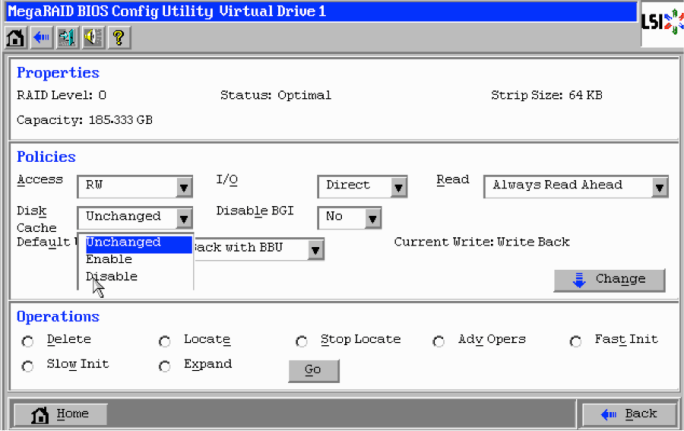
A few colleagues of mine recently worked with a customer deploying VMware Virtual SAN (VSAN) with Cisco UCS hosts using the LSI MegaRAID 9271CV-81 I/O Controller and documented the configuration choices below. Note, in general the VSAN guidance has been to disable all controller cache so these choices follow this theme. Also note that we are not LSI experts and would welcome feedback from others on their experience with other settings.

Change the default settings in the screenshot below to the following:

  • Access = RW
  • I/O = Direct
  • Read = Disable
  • Disk Cache = Disabled
  • Disable BGI = No
  • Default Write = Write Through

LSI MegaRAID BIOS Config 01

* All settings can be changed on the fly or using storcli for VMware:

http://www.lsi.com/downloads/Public/RAID%2520Controllers/RAID%2520Controllers%2520Common%2520Files/1.09.13_StorCLI.zip 

* User guide

http://www.lsi.com/downloads/Public/RAID%20Controllers/RAID%20Controllers%20Common%20Files/51530-00_Rev_L.zip

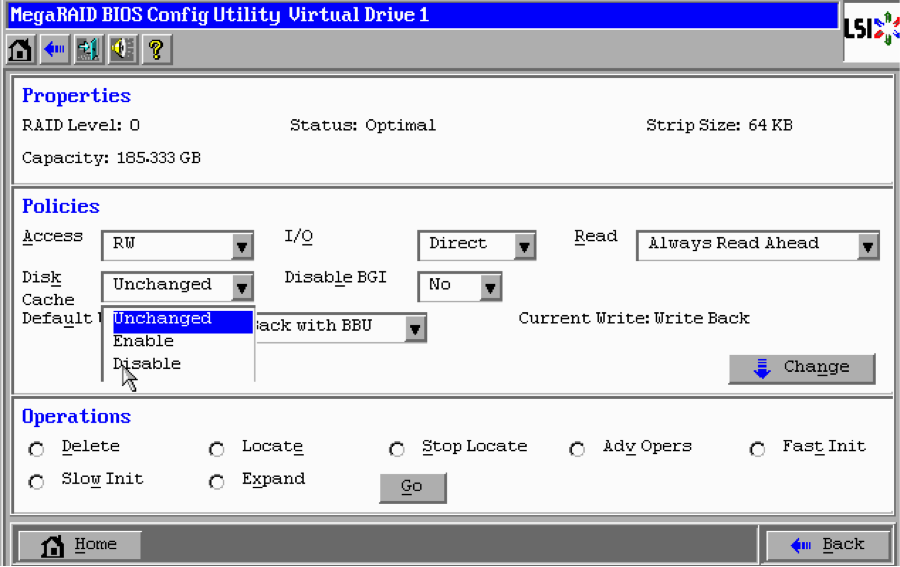
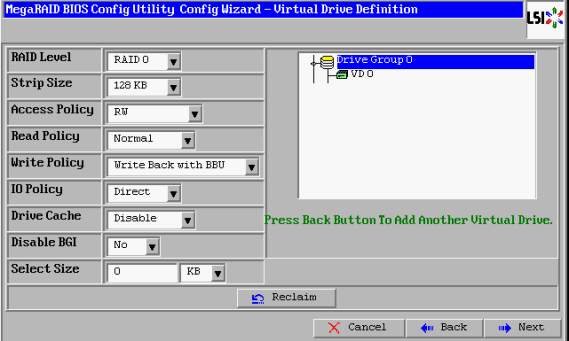
Other versions of the MegaRAID controller might have a screen that looks something like the one below:

LSI MegaRAID BIOS Config 02

Thanks to my colleagues Justin Beck and Jason Burroughs for documenting and sharing their experience.

Virtual SAN Software Defined Self Healing

I think one of the hidden gem features of VMware Virtual SAN (VSAN) is it’s software defined self healing ability.  On the surface this concept is simple.  The entire pool of disks in VSAN are used as hot spares.  In the event of a failure, data from the failed disks or hosts are found on other disks in the cluster and replicas (mirrors) are rebuilt onto other disks in the cluster to get back to having redundant copies for protection.  For VSAN, the protection level is defined through VMware’s Storage Policy Based Management (SPBM) which is built into vSphere and managed through vCenter.  OK, lets get into the details.

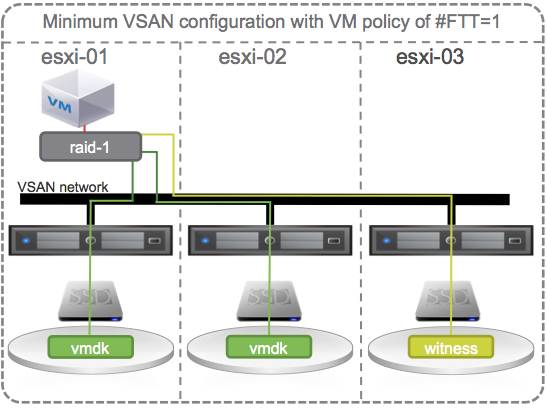
Lets start with the smallest VSAN configuration possible that provides redundancy, a 3 host vSphere cluster with VSAN enabled and 1 SSD and 1 HDD per host.  And, lets start with a single VM with the default # Failures To Tolerate (#FTT) equal to 1.  A VM has at least 3 objects (namespace, swap, vmdk).  Each object has 3 components (data 1, data 2, witness) to satisfy #FTT=1.  Lets just focus on the vmdk object and say that the VM sits on host 1 with copies of its vmdk data on host 1 and 2 and the witness on host 3.

Minimum VSAN configuration with VM policy of #FTT=1

OK, lets start causing some trouble.  With the default # Failures To Tolerate equal 1, VM data on VSAN should be available if a single SSD, a single HDD, or an entire host fails.

Continue reading “Virtual SAN Software Defined Self Healing”

Configuring HP Smart Array P420i I/O Controller for VSAN

I’ve been working with many customers over the last several months and found that many are very familiar with HP hardware and just know how to set things up.  Others are looking for guidance from VMware on how to configure for VSAN.  There are things I’ve discovered that might not be obvious but can help in the VSAN setup.  Bear in mind, I am not an HP server hardware expert, so your comments are greatly appreciated.

Before I go too far, there is a bug in the HP async controller driver for the HP 420i that is included in the HP ESXi image.  The bug reduces the queue depth to 28, instead of 1020, causing poor performance in VSAN.

Here’s how to check your hosts IO Controller (storage adapter) queue depth:

  • Run the esxtop command on the ESXi shell / SSH session
  • Press d
  • Press f and select Queue Stats (d)
  • The value listed under AQLEN is the queue depth of the storage adapter

To resolve, follow these directions to implement the correct driver:

HP ProLiant Smart Array Controller Driver for VMware vSphere 5.5 (VIB file)

OK, a little background/overview on I/O Controller guidance for VSAN.  In general, VSAN recommends disabling Read and Write cache for any I/O Controller.  Since VSAN handles Read and Write caching at the software layer, there’s no need to do it at the hardware level.  Also, when destaging write cache, we want to ensure that the writes are committed to disk and not in I/O Controller cache.

In the case of the HP P420i, you cannot disable the I/O Controller cache so VSAN recommends setting it to 100% Read which essentially disables Write cache.  I recently discovered that you can also selectively pick and choose which disks to enable cache for.

Continue reading “Configuring HP Smart Array P420i I/O Controller for VSAN”

Virtual SAN Disaster Recovery – vSphere Replication (available now) or Virtual RecoverPoint (coming soon), choose your protection!

I’m often asked how to protect Virtual SAN (VSAN). Its simple, any product focused on protecting a virtual machine (VM) will work for protecting VM’s sitting on a VSAN enabled vSphere cluster. VMware offers VDP/VDPA for backup & recovery and there are many other VMware partners with backup & recovery solutions focused on protecting VM’s. Backup & Recovery is a great way to protect data but some customers like the benefit of more granular recovery points that comes from data replication either locally or to a disaster recovery site.

To protect VSAN data in a primary site to a remote disaster recovery site VMware offers vSphere Replication (VR) to replicate the VM data sitting on a VSAN Datastore over the DR site. Of course Site Recovery Manager (SRM) is supported to automate failover, failback and testing. The VR/SRM combined solution can also be used for planned data center migrations. Here are a few great write-ups on the topics:

VMware Virtual SAN Interoperability: vSphere Replication and vCenter Site Recovery Manager

Virtual SAN Interoperability – Planned migration with vSphere Replication and SRM

VSAN and vSphere Replication Interop

One of the main benefits of VR is that it will work to replicate VM data on any storage to another site with hosts connected to any other storage. So, VSAN can be the source, the target, or both.
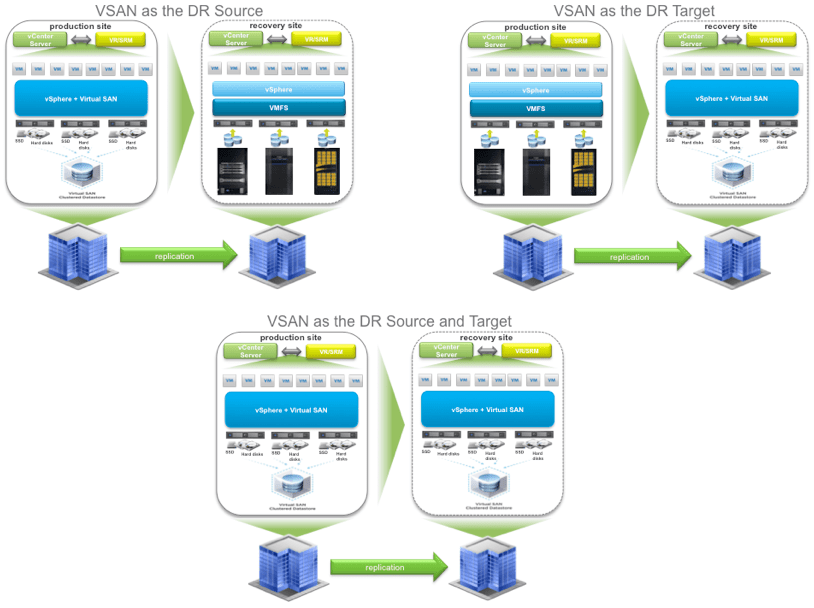
VSAN & VR


vSphere Replication can be set to asynchronously replicate every day, hour, or up to every 15 minutes. Thus providing a Recovery Point Objective (RPO) of up to 15 minutes. For many customers, this is “good enough”. For some customer workloads, asynchronous replication is not “good enough”. They need synchronous replication protection and there are several solutions in the market. One that I’ve been a big fan of for a long time is EMC’s RecoverPoint which has a great reputation for protecting enterprise mission critical data and applications.  Essentially it splits every write transaction, journals it, and synchronously makes a copy of it either locally or to a remote DR site without impacting application performance. Of course there are more details but this is essentially what it does which results in being able to recover back to any point in time. Often it’s labeled as “Tivo or DVR for the data center”. One other benefit of RecoverPoint is it can replicate data from any storage to any storage, as long as there is a splitter for the storage. EMC VNX and VMAX storage arrays have splitters built in.

The big news that just came out last week that peeked my interest is that EMC is now offering a Beta of a completely software based RecoverPoint solution that embeds the splitter into vSphere. This brings the RecoverPoint benefits to any VMware customer running VM’s on any storage: block, file, or of course even VSAN. The EMC initiative is call Project Mercury and for more information check out:

Summer Gift Part 1 – Project Mercury Beta Open!

I’m excited that VSAN customers will have a choice for data protection, asynchronously with 15 minute RPO using vSphere Replication or continuous, synchronous, and asynchronous with EMC’s Virtual RecoverPoint.