VSAN In 3 Minutes Series

These are so cool I had to recognize them. If you are like me and would rather see things in action than read about them in a manual, then the VSAN In 3 Minutes Series is for you.

VSAN in 3 Minutes Series

Check the videos out. A big shout out to my colleague Greg Mulholland who does a great job putting these together.

VMware Virtual SAN at Storage Field Day 9 (SFD9) – Making Storage Great Again!

On Friday, March 18 I took the opportunity to watch the live Webcast of Storage Field Day 9. If you can carve our some time, I highly recommend this.

Tech Field Day‎@TechFieldDay
VMware Storage Presents at Storage Field Day 9

The panel of industry experts ask all the tough questions and the great VMware Storage team answers them all.

Storage Industry Experts VMware Virtual SAN Experts
  • Alex Galbraith @AlexGalbraith
  • Chris M Evans @ChrisMEvans
  • Dave Henry @DaveMHenry
  • Enrico Signoretti @ESignoretti
  • Howard Marks @DeepStorageNet
  • Justin Warren @JPWarren
  • Mark May @CincyStorage
  • Matthew Leib @MBLeib
  • Richard Arnold @3ParDude
  • Scott D. Lowe @OtherScottLowe
  • Vipin V.K. @VipinVK111
  • W. Curtis Preston @WCPreston
  • Yanbing Le @ybhighheels
  • Christos Karamanolis @XtosK
  • Rawlinson Rivera @PunchingClouds
  • Vahid Fereydouny @vahidfk
  • Gaetan Castelein @gcastelein1
  • Anita Kibunguchy @kibuanita


The ~2 hour presentation was broken up into easily consumable chunks. Here’s a breakdown or the recoded session:

VMware Virtual SAN Overview

In this Introduction, Yanbing Le, Senior Vice President and General Manager, Storage and Availability, discusses VMware’s company success, the state of the storage market, and the success of HCI market leading Virtual SAN in over 3000 customers.

What Is VMware Virtual SAN?

Christos Karamanolis, CTO, Storage and Availability BU, jumps into how Virtual SAN works, answers questions on the use of high endurance and commodity SSD, and how Virtual SAN service levels can be managed through VMware’s common control plane – Storage Policy Based Management.

VMware Virtual SAN 6.2 Features and Enhancements

Christos continues the discussion around VSAN features as they’ve progressed from the 1st generation Virtual SAN released in March 12, 2014 to the 2nd, 3rd, and now 4th generation Virtual SAN that was just released March 16, 2016. The discussion in this section focuses a lot on data protection features like stretched clustering and vSphere Replication. They dove deep into how vSphere Replication can deliver application consistent protection as well as a true 5 minute RPO based on the built in intelligent scheduler sending the data deltas within the 5 minute window, monitoring the SLAs, and alerting if they cannot be met due to network issues.

VMware Virtual SAN Space Efficiency

Deduplication, Compression, Distributed RAID 5 & 6 Erasure Coding are all now available to all flash Virtual SAN configurations. Christos provides the skinny on all these data reduction space efficiency features and how enabling these add very little overhead on the vSphere hosts. Rawlinson chimes on the automated way Virtual SAN can build the cluster of disks and disk groups that deliver the capacity for the shared VSAN datastore. These can certainly be built manually but VMware’s design goal is to make the storage system as automated as possible. The conversation moves to checksum and how Virtual SAN is protecting the integrity of data on disks.

VMware Virtual SAN Performance

OK, this part was incredible! Christos laid down the gauntlet, so to speak. He presented the data behind the testing that shows minimal impact on the hosts when enabling the space efficiency features. Also, he presents performance data for OLTP workloads, VDI, Oracle RACK, etc. All cards on the table here. I can’t begin to summarize, you’ll just need to watch.

VMware Virtual SAN Operational Model

Rawlinson Rivera takes over and does what he does best, throwing all caution to the wind and delivering live demonstrations. He showed the Virtual SAN Health Check and the new Virtual SAN Performance Monitoring and Capacity Management views built into the vSphere Web Client. Towards the end, Howard Marks asked about supporting future Intel NVMe capabilities and Christos’s response was that it’s safe to say VMware is working closely with Intel on ensuring the VMware storage stack can utilize the next generation devices. Virtual SAN already supports the Intel P3700 and P3600 NVMe devices.

This was such a great session I thought I’d promote it and make it easy to check it out. By the way, here’s Rawlinson wearing a special hat!
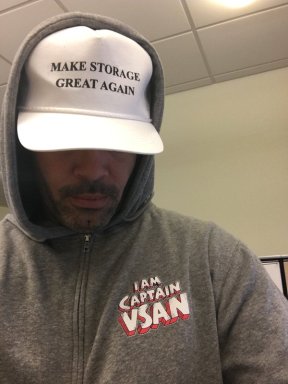
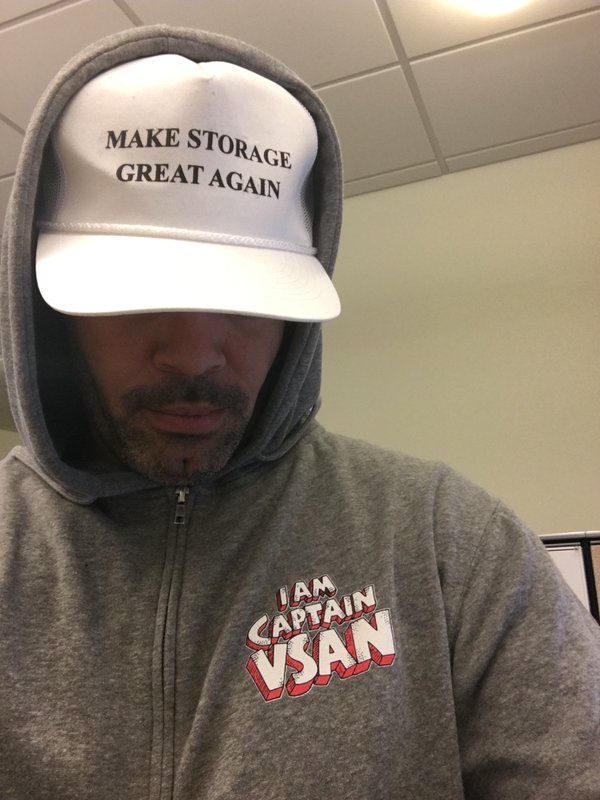
Make Storage Great Again


How To Configure the Cisco 12G SAS Modular Raid Controller for Pass-Through Mode

Yesterday I was at the New England VTUG event which is always a great event to meet up with familiar faces and be introduced to some new ones. I met up with a relatively new VMware Virtual SAN customer and we discussed lots of fun things about VSAN and their implementation experience. One frustrating thing they mentioned is that they couldn’t find anywhere that documented how to put the Cisco 12G SAS Modular Raid Controller in Pass-Through mode. They explained that after lots of searching on VMware and Cisco’s site, they contacted Cisco and were provided the information. They were kind enough to capture a screenshot of the setting and provide it to me.

The procedure is:

  • Log into the Cisco UCS Manager
  • Open a console to the host
  • Reboot the host
  • On boot up hit Ctrl+R to enter the Cisco 12G SAS Modular Raid Controller BIOS Configuration Utility
  • Hit Ctrl-N until the “Ctrl Mgmt” page is selected
  • In the bottom right hand corner, make sure the “Enable JBOD” field shows an X per the screen shot below.
  • Hit Ctrl-S to save Reboot

Cisco 12G SAS Enable JBOD

That’s it. Easy.

If this is a brand new, unconfigured host, the unclaimed disks in the host will now get passed to ESXi and VSAN can use them for the VSAN datastore.

However, if this host IO Controller had previously been configured with RAID, you should check out: How to delete the RAID configuration from drives managed by the Cisco 12G SAS Modular Raid Controller

I hope that helps others save some time in getting VSAN up and running.

Special thanks to Stephanie Forde and Matthew Gabrick from the Boston Water and Sewer Commission for pointing this out and providing the screenshot.

Queue Depth and the FBWC Controller Cache module on the Cisco 12G SAS Modular Raid Controller for Virtual SAN

If you scan the bill of materials for the various Cisco UCS VSAN ReadyNodes you’ll see a line item for:

Controller Cache: Cisco 12Gbps SAS 1GB FBWC Cache module (Raid 0/1/5/6)

If you’ve followed Virtual SAN for awhile you might wonder, why would the ReadyNodes include controller cache when VMware recommends disabling controller cache when implementing Virtual SAN. Well, it turns out that the presence of the FBWC Cache module allows the queue depth of the Cisco 12G SAS Modular Raid Controller to go from the low 200’s to the advertised 895. The minimum queue depth requirement for Virtual SAN is 256 so including the FBWC Cache module allows the queue depth to increase above that minimum requirement and improve Virtual SAN performance.

Steps to Implement the Correct I/O Controller Driver for the Cisco 12G SAS Modular Raid Controller for Virtual SAN

This is my third post this week, possibly a record for me. All three are centered around ensuring the correct firmware and drivers are installed and running. The content of this post was created by my colleague, David Boone, who works with VMware customers to ensure successful Virtual SAN deployments. When it comes to VSAN, its important to use qualified hardware but equally important to make sure the correct firmware and drivers are installed.

Download the Correct I/O Controller Driver

Navigate to the VMware Compatibility Guide for Virtual SAN, scroll down and select “Build Your Own based on Certified Components”, then find the controller in the database. Here’s the link for the Cisco 12G SAS Modular Raid Controller and the link to download the correct driver for it (as of Nov. 20, 2015): https://my.vmware.com/web/vmware/details?downloadGroup=DT-ESX55-LSI-SCSI-MEGARAID-SAS-660606001VMW&productId=353

Install the Correct Driver

Use your favorite way to install the driver. This might include creating a custom vSphere install image to deploy on multiple hosts, rolling out via vSphere Update Manager (VUM), or manually installing on each host.

Continue reading “Steps to Implement the Correct I/O Controller Driver for the Cisco 12G SAS Modular Raid Controller for Virtual SAN”

What if the SSD and HDD Firmware Versions are Newer Than What is Listed on the VMware Compatibility Guide (VCG) for Virtual SAN?

No problem, this is OK.

If you want to know more detail, keep reading…

Last week I was working with a customer to implement a VSAN ReadyNode. Before enabling VSAN on a cluster it’s a best practice to validate that the firmware of the host I/O Controller, SSD’s (SAS, SATA, PCIe, NVMe, or UltraDIMM), and HDD’s (SAS, NL-SAS, or SATA) are up to the required versions. Each hardware vendor has a different way of doing this.

In reviewing this particular customers hardware, we found that the SSD and HDD Firmware Versions were newer than what is listed on the VCG.

Note that for SSD’s and HDD’s, the hardware vendors provides the VMware Virtual SAN team with the firmware version they tested and qualified for VSAN. VMware then lists that firmware version for that model of disk on the VMware Compatibility Guide (VCG) for Virtual SAN. If the hardware vendor comes out with “new firmware” then it does not require VSAN re-certification of the SSD or HDD. VMware supports disks with “newer firmware” for Virtual SAN but VMware leaves the VCG alone and continues listing the “old firmware”. However, if the hardware vendor wants VMware to remove the “old firmware” from the VCG listing and replace it with the “new firmware” VMware would do that upon their request. This would typically happen if the hardware vendor discovers an issue/bug with the “old firmware”.

I hope this helps clarify how VMware treats SSD and HDD Firmware Version listings on the VMware Compatibility Guide for Virtual SAN.

VSAN Sessions at VMworld 2014

I’m really looking forward to attending VMworld 2014 in a few weeks.  Its a great time to catch up with friends and meet new ones.  For me the week kicks off on Thursday at the VMware SE Tech Summit.  Then vOdgeball on Sunday afternoon with a team of former EMC vSpecialists.  This is a great event to help out a great cause, the Wounded Warrior Project.  We’ll also be honoring our two vSpecialist friends, Jim Ruddy and Stephen Hunt, that were recently involved in a tragic accident.  Then the main event starts Sunday night.  It should be fun and exhausting.

Virtual SAN (VSAN) is sure to be one of the highlights of the show.

Continue reading “VSAN Sessions at VMworld 2014”

What is the RAW to Usable capacity in Virtual SAN (VSAN)?

I get asked this question a lot so in the spirit of this blog it was about time to write it up.

The only correct answer is “it depends”. Typically, the RAW to usable ratio is 2:1 (i.e. 50%). By default, 1TB RAW capacity equates to approximately 500GB usable capacity. Read on for more details.

In VSAN there are two choices that impact RAW to usable capacity. One is the protection level and the other is the Object Space Reservation (%). Lets start with protection.

Virtual SAN (VSAN) does not use hardware RAID (Disclaimer at the end). Thus, it does not suffer the capacity, performance, or management overhead penalty of hardware RAID. The raw capacity of the local disks on a host are presented to the ESXi hypervisor and when VSAN is enabled in the cluster the local disks are put into a shared pool that is presented to the cluster as a VSAN Datastore. To protect VM’s, VSAN implements software distributed RAID leveraging the disks in the VSAN Datastore. This is defined by setting policy. You can have different protection levels for different policies (Gold, Silver, Bronze) all satisfied by the same VSAN Datastore.

The VSAN protection policy setting is “Number of Failures to Tolerate (#FTT) and can be set to 0, 1, 2, 3. The default is #FTT=1 which means using distributed software RAID there will be 2 (#FTT+1) copies of the data on two different hosts in the cluster. So if the VM is 100GB then it takes 200GB of VSAN capacity to satisfy the protection. This would be analogous to RAID 1 on a storage array. But rather than writing to a disk then to another disk in the same host we write to another disk on another host in the cluster. With #FTT=1, VSAN can tolerate a single SSD failure, a single HDD failure, or a single host failure and maintain access to data. Valid settings for #FTT are 0, 1, 2, 3. If set to 3 then there will be 4 copies of the VM data thus RAW to usable would be 25%. In addition, there is a small formatting overhead (couple of MB) on each disk but is negligible in the grand scheme of things.

#FTT # Copies
(#FTT+1)
RAW-to-usable Capacity %
0 1 100%
1 2 50%
2 3 33%
3 4 25%

Perhaps you create the following policies with the specified #FTT:

  • Bronze with #FTT=0 (thus no failure protection)
  • Silver policy with #FTT=1 (default software RAID 1 protection)
  • Gold policy with #FTT=2 (able to maintain availability in the event of a double disk drive failure, double SSD failure, or double host failure)
  • Platinum policy with #FTT=3 (4 copies of the data).

Your RAW to useable capacity will depend on how many VM’s you place in the different policies and how much capacity each VM is allocated and consumes. Which brings us to the Object Space Reservation (%) discussion.

In VSAN, different policy can have different Object Space Reservation (%) (Full Provisioned percentages) associated with them. By default, all VM’s are thin provisioned thus 0% reservation. You can choose to fully provision any % up to 100%. If you create a VM that is put into a policy with Object Space Reservation equal to 50% and give it 500GB then initially it will consume 250GB out of the VSAN Datastore. If you leave the default of 0% reservation then it will not consume any capacity out of the VSAN Datastore but as data is written it will consume capacity per the protection level policy defined and described above.

That ended up being a longer write up than I anticipated but as you can see, it truly does depend. I suggest sticking to the rule of thumb of 50% RAW to usable. But if you are looking for exact RAW to usable capacity calculations you can refer to the VMware Virtual SAN Design and Sizing Guide found here. https://blogs.vmware.com/vsphere/2014/03/vmware-virtual-san-design-sizing-guide.html
Also, you can check out Duncan Epping’s Virtual SAN Datastore Calculator: http://vmwa.re/vsancalc

Disclaimer at the end: ESXi hosts require IO Controllers to present local disk for use in VSAN. The compatible controllers are found on the VSAN HCL here: http://www.vmware.com/resources/compatibility/search.php?deviceCategory=vsan

These controllers work in one of two modes; passthrough or RAID 0. In passthrough mode the RAW disks are presented to the ESXi hypervisor. In RAID 0 mode each disk needs to be placed in its own RAID 0 disk group and made available as local disks to the hypervisor. The exact RAID 0 configuration steps are dependent on the server and IO Controller vendor. Once each disk is placed in their own RAID 0 disk group you will then need to login via SSH to each of your ESXi hosts and run commands to ensure that the HDD’s are seen as “local” disks by Virtual SAN and that the SSD’s are seen as “local” and “SSD”.

I hope this is helpful. Of course questions and feedback is welcome.

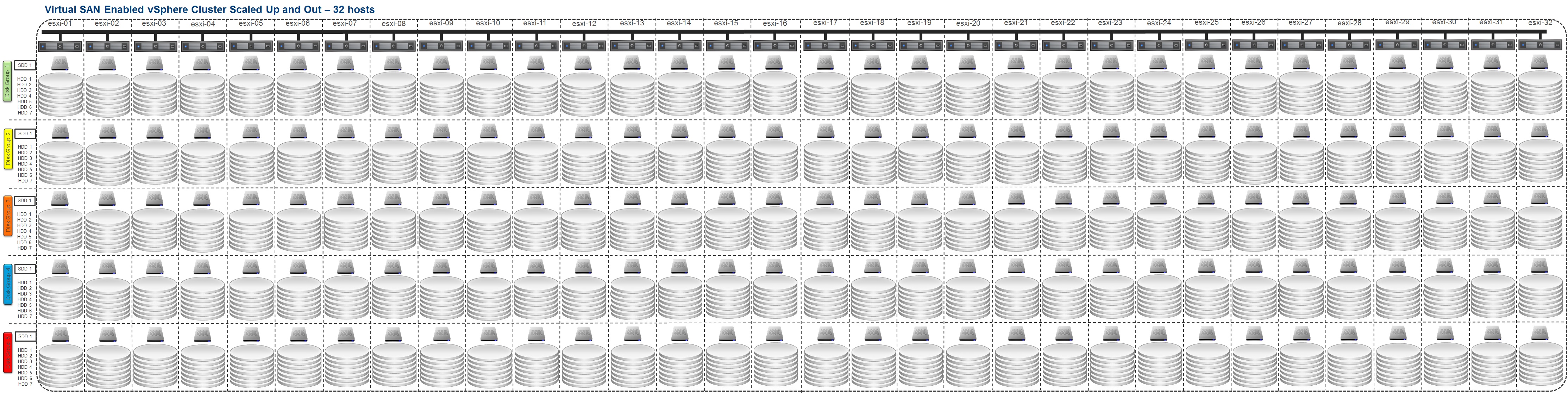
What does a 32 host Virtual SAN (VSAN) Cluster Look Like?

The big VMware Virtual SAN (VSAN) launch was today. Here are a couple of good summaries:

Cormac Hogan – Virtual SAN (VSAN) Announcement Review

Duncan Epping – VMware Virtual SAN launch and book pre-announcement!

The big news is that VSAN will support a full 32 hosts vSphere cluster. So what does that look like fully scaled up and out?

VSAN - 32 Hosts

By the way, for details on how VSAN scales up and out check: Is Virtual SAN (VSAN) Scale Up or Scale Out Storage…, Yes!.