What is the RAW to Usable capacity in Virtual SAN (VSAN)?

I get asked this question a lot so in the spirit of this blog it was about time to write it up.

The only correct answer is “it depends”. Typically, the RAW to usable ratio is 2:1 (i.e. 50%). By default, 1TB RAW capacity equates to approximately 500GB usable capacity. Read on for more details.

In VSAN there are two choices that impact RAW to usable capacity. One is the protection level and the other is the Object Space Reservation (%). Lets start with protection.

Virtual SAN (VSAN) does not use hardware RAID (Disclaimer at the end). Thus, it does not suffer the capacity, performance, or management overhead penalty of hardware RAID. The raw capacity of the local disks on a host are presented to the ESXi hypervisor and when VSAN is enabled in the cluster the local disks are put into a shared pool that is presented to the cluster as a VSAN Datastore. To protect VM’s, VSAN implements software distributed RAID leveraging the disks in the VSAN Datastore. This is defined by setting policy. You can have different protection levels for different policies (Gold, Silver, Bronze) all satisfied by the same VSAN Datastore.

The VSAN protection policy setting is “Number of Failures to Tolerate (#FTT) and can be set to 0, 1, 2, 3. The default is #FTT=1 which means using distributed software RAID there will be 2 (#FTT+1) copies of the data on two different hosts in the cluster. So if the VM is 100GB then it takes 200GB of VSAN capacity to satisfy the protection. This would be analogous to RAID 1 on a storage array. But rather than writing to a disk then to another disk in the same host we write to another disk on another host in the cluster. With #FTT=1, VSAN can tolerate a single SSD failure, a single HDD failure, or a single host failure and maintain access to data. Valid settings for #FTT are 0, 1, 2, 3. If set to 3 then there will be 4 copies of the VM data thus RAW to usable would be 25%. In addition, there is a small formatting overhead (couple of MB) on each disk but is negligible in the grand scheme of things.

#FTT # Copies
(#FTT+1)
RAW-to-usable Capacity %
0 1 100%
1 2 50%
2 3 33%
3 4 25%

Perhaps you create the following policies with the specified #FTT:

  • Bronze with #FTT=0 (thus no failure protection)
  • Silver policy with #FTT=1 (default software RAID 1 protection)
  • Gold policy with #FTT=2 (able to maintain availability in the event of a double disk drive failure, double SSD failure, or double host failure)
  • Platinum policy with #FTT=3 (4 copies of the data).

Your RAW to useable capacity will depend on how many VM’s you place in the different policies and how much capacity each VM is allocated and consumes. Which brings us to the Object Space Reservation (%) discussion.

In VSAN, different policy can have different Object Space Reservation (%) (Full Provisioned percentages) associated with them. By default, all VM’s are thin provisioned thus 0% reservation. You can choose to fully provision any % up to 100%. If you create a VM that is put into a policy with Object Space Reservation equal to 50% and give it 500GB then initially it will consume 250GB out of the VSAN Datastore. If you leave the default of 0% reservation then it will not consume any capacity out of the VSAN Datastore but as data is written it will consume capacity per the protection level policy defined and described above.

That ended up being a longer write up than I anticipated but as you can see, it truly does depend. I suggest sticking to the rule of thumb of 50% RAW to usable. But if you are looking for exact RAW to usable capacity calculations you can refer to the VMware Virtual SAN Design and Sizing Guide found here. https://blogs.vmware.com/vsphere/2014/03/vmware-virtual-san-design-sizing-guide.html
Also, you can check out Duncan Epping’s Virtual SAN Datastore Calculator: http://vmwa.re/vsancalc

Disclaimer at the end: ESXi hosts require IO Controllers to present local disk for use in VSAN. The compatible controllers are found on the VSAN HCL here: http://www.vmware.com/resources/compatibility/search.php?deviceCategory=vsan

These controllers work in one of two modes; passthrough or RAID 0. In passthrough mode the RAW disks are presented to the ESXi hypervisor. In RAID 0 mode each disk needs to be placed in its own RAID 0 disk group and made available as local disks to the hypervisor. The exact RAID 0 configuration steps are dependent on the server and IO Controller vendor. Once each disk is placed in their own RAID 0 disk group you will then need to login via SSH to each of your ESXi hosts and run commands to ensure that the HDD’s are seen as “local” disks by Virtual SAN and that the SSD’s are seen as “local” and “SSD”.

I hope this is helpful. Of course questions and feedback is welcome.
What does a 32 host Virtual SAN (VSAN) Cluster Look Like?

The big VMware Virtual SAN (VSAN) launch was today. Here are a couple of good summaries:

Cormac Hogan – Virtual SAN (VSAN) Announcement Review

Duncan Epping – VMware Virtual SAN launch and book pre-announcement!

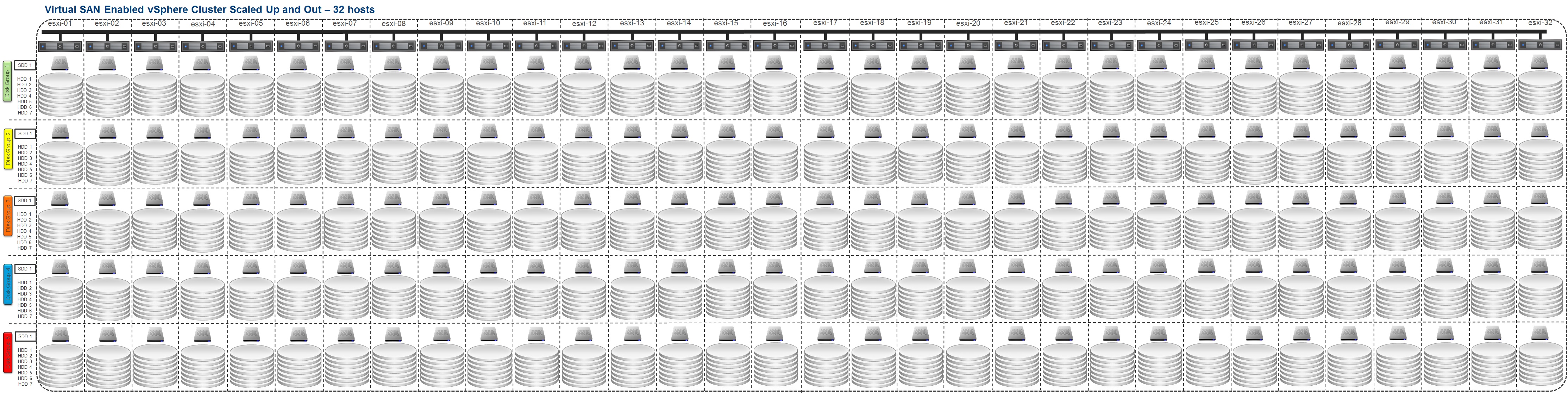
The big news is that VSAN will support a full 32 hosts vSphere cluster. So what does that look like fully scaled up and out?

VSAN - 32 Hosts

By the way, for details on how VSAN scales up and out check: Is Virtual SAN (VSAN) Scale Up or Scale Out Storage…, Yes!.

2 Great Bootcamps coming up at VMware Partner Exchange – PEX 2014

SDDC3522-BC – Software-Defined Storage Technical Boot Camp

This session will be all day on Saturday 2/8/2014 starting at 8:30AM.  I will be presenting the SDDC and VSAN overview as well as the vSphere Flash Read Cache Technical Presentation.  The technical deep dive on VSAN will be presented by Wade Holmes and a few other guest speakers.  Wade has authored a couple of the Hardware Configuration guidance blogs on SSD and IO Controllers and has been feverishly testing VSAN in all sorts of configurations in preparation for product launch.  I’m excited about the technical depth that Wade will go into and know our partners will get a ton of good information out of this session.  In addition, one of our engineers, Joe Cook, has been working with a bunch of customers to implement VSAN.  He will share the processes he’s been using for Proof of Concepts as well as present how to monitor and troubleshoot VSAN.  As a bonus, he’ll share a new tool that we’ve developed to help our partners analyze customer environments in preparation for VSAN and other VMware technologies. 

3579-SPO – EMC’s Game Changing Solution Roadmaps, Resources & Partner Programs

This session will be all day Monday 2/10/2014 starting at 8:30AM.  Prior to my current position as a Software Defined Storage SE for VMware I was an EMC vSpecialist for almost 4 years.  So this session is near and dear to my heart.  I just sat through the EMC Elect PEX planning concall and saw the full agenda for this one.  Lots of great presenter’s including of course Chad Sakic, Jason Nash, Aaron Chaisson, Rob Peglar, Brian Whitman, and others.  Chad will kick things off but you’ll need to download the NDA form from the PEX schedule builder and bring the signed copy in order to get into the session.

Continue reading “2 Great Bootcamps coming up at VMware Partner Exchange – PEX 2014”

Virtual SAN (VSAN) Beta, now 17% larger!

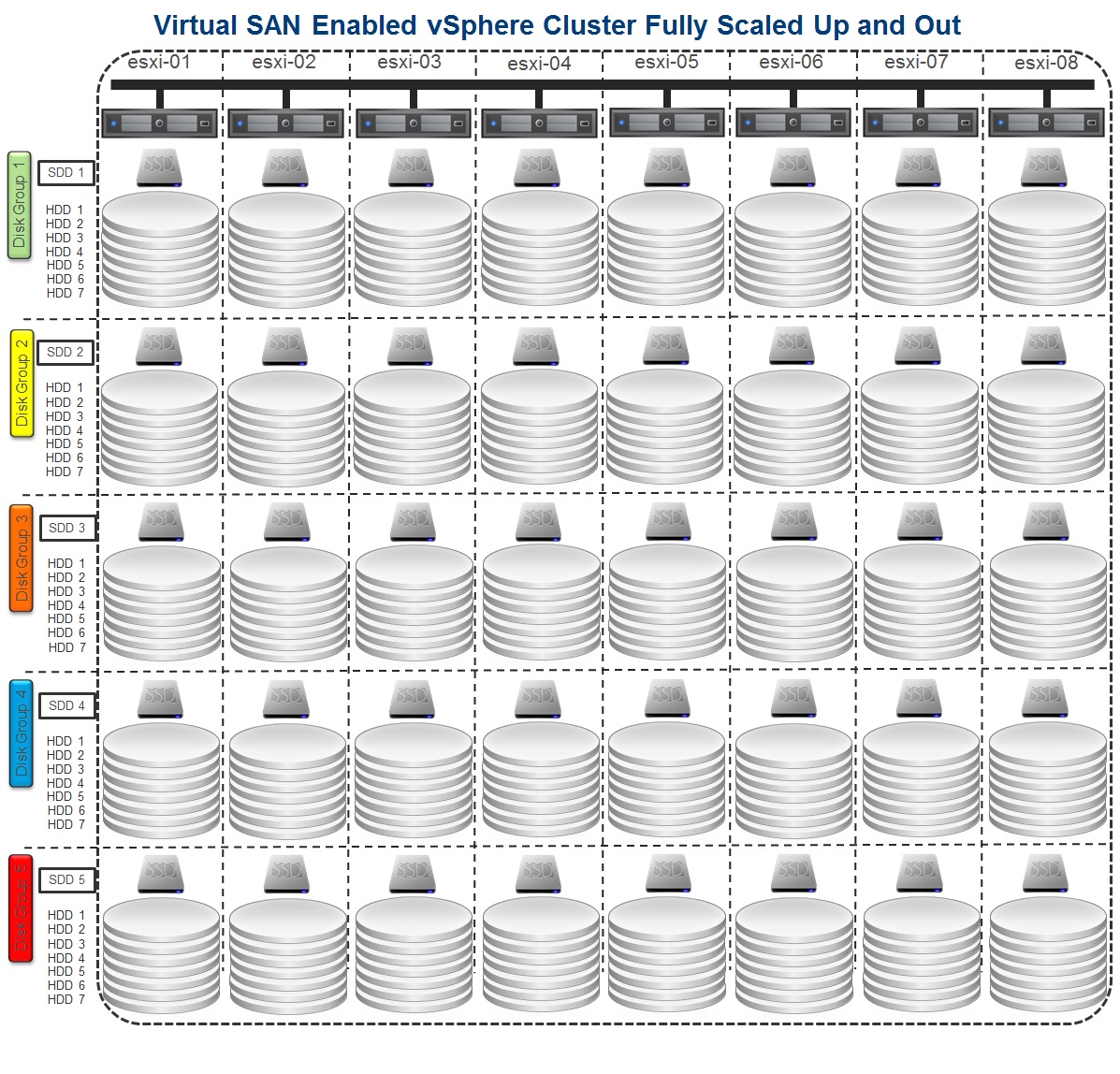
In a previous post here I detailed the Scale Up and Scale Out capabilities of VSAN.  It looks like I’ll need to redo my diagrams since Virtual SAN just increased the number of HDDs in a disk group from 6 to 7.  That’s a 17% increase in RAW capacity.  The number of SSD’s remain 1 per disk group, 5 per host, 40 per 8 host cluster.  With the increase from 6 to 7 HDD’s per disk group you can now have 35 HDD’s per host and in an 8 host cluster an increase from 240 to 280 HDD’s.  That’s an extra 40 HDD’s which translates to a ton of extra RAW capacity.

Virtual SAN Enabled vSphere Cluster Fully Scaled Up and Out 2

To support this increase you’ll need to download the recently released VSAN Beta code found on the VMware Virtual SAN Community page.

Also check out this great post on Virtual SAN – Sizing Considerations.

Is Virtual SAN (VSAN) Scale Up or Scale Out Storage…, Yes!

This may not be the most sophisticated definition but Scale Up storage means you buy a box with a certain amount of storage capacity and performance then sometime later you add more storage (HDD or SSD) to it to increased both capacity and IOPS performance.  Scale Out means you buy a box then sometime later add more boxes to increase both capacity and IOPS performance.  VMware Virtual SAN is both.  You have options to Scale Out as well as Scale Up.  Lets investigate.

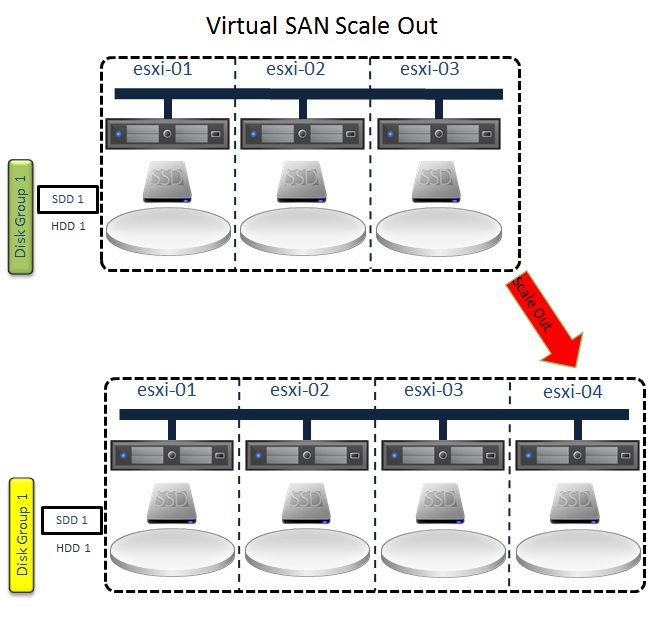
The minimum configuration for a VSAN is 3 hosts (boxes) with 1 SSD and 1 HDD in each.  Lets say you started with that and stored enough data that you need more capacity.  You have the option to add another host (box) with SSD and HDD.  This would be a Scale Out approach to solving the problem.

Virtual SAN Scale Out

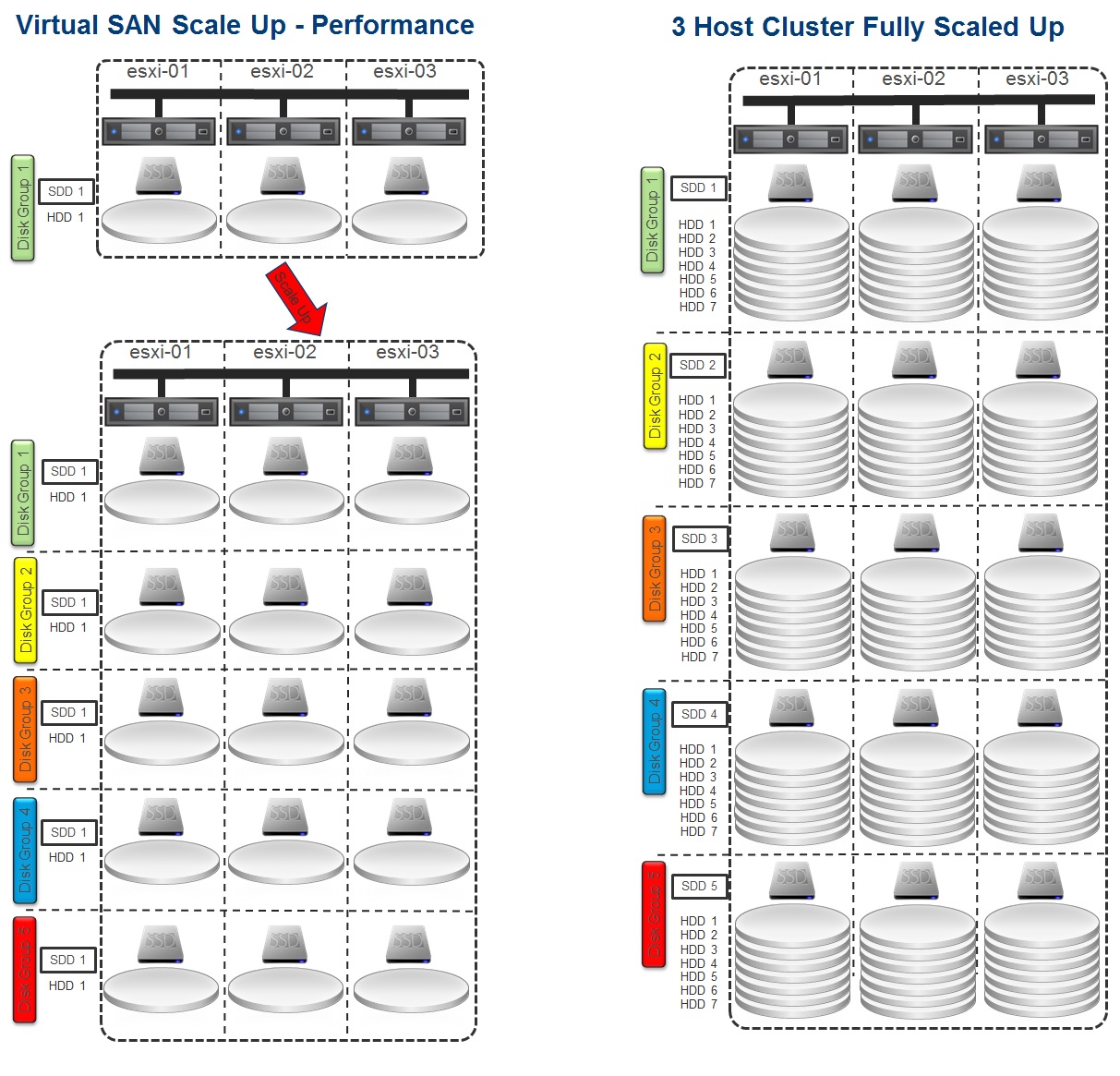
But in your analysis you might find that you don’t need the extra host CPU and memory to support more Virtual Machines.  So rather than adding another host, you can simply add more HDDs to the existing VSAN disk groups on the existing hosts for increased capacity and as a side benefit you get increased IOPS performance too.  This would be a Scale Up approach to solving the capacity problem.

Virtual SAN Scale Up - Capacity

Lets say in your VSAN analysis (see here, here, and here for good info on VSAN analysis) you are seeing a lot of read cache misses.  To improve performance caused by this problem you could increase the number of disk stripes for the VMs.  However, this doesn’t necessarily address fixing the problem.  Reducing the number of read cache misses might be better accomplished by adding more SSD caching capacity.  Like the previous example, you have the option to add another host with SSD and HDD.  But if you don’t need the extra host CPU and memory to support more Virtual Machines you can add more SSD to the existing hosts.  For each host in the VSAN enabled cluster you’ll need to create a second disk group, or up to five disk groups, and add at least 1 SSD and 1 HHD to each group.  This will increased IOPS performance (Scale Up for performance) and as a side benefit you get increased capacity.

Virtual SAN Scale Up & Out

A few VMware VSAN Beta Highlights & Best Practices to keep in mind:

  • Min 1 SSD & 1 HDD per host, Max 1 SSD & 7 HDD per disk group, Max 5 disk groups per host
  • Min 3 Hosts, Max 8 Hosts, Max 1 VSAN datastore per cluster (support for more hosts may increase in the future)
  • Max vsanDatastore = (8 hosts * 5 disk groups * 7 disks * size of disks) = 280 * size of disks
  • SSD capacity should be ~10% of your HDD capacity (e.g. 1 GB of SSD to every 10 GB of SAS/SATA).

Virtual SAN Enabled vSphere Cluster Fully Scaled Up and Out 2

VMware Virtual SAN Scales Out as your vSphere cluster Scales Out but don’t forget that you can Scale Up individual hosts as well for both increased capacity and IOPS performance.

Does Virtual SAN (VSAN) Support Blade Servers?… Yes!

Yes, Virtual SAN (VSAN) can be supported on blade servers. VSAN will predominantly be deployed on rack mount servers but I continue to run into customers that are blade shops and they want to take advantage of VSAN.

Option 1

Without going into detail about specific vendors and their hardware options, many blade server vendors support 2 or more SFF SAS/SATA/SSD in their blades.  Make one of those an SSD and the other a SAS/SATA and you are good to go for VSAN.  Put at least 3 blades configured like this or up to 8 (max for VSAN Beta) into a VSAN enabled cluster.

Option 2

Take 3 rack mount servers and install at least 1 SSD and 1 HDD in each or up to 5 SSD and 30 HDDs (max for VSAN Beta).  Put these 3 rack mount servers and up to 5 blade servers (with or without disks) into a VSAN enabled cluster for a total of up to 8 hosts (max for VSAN Beta) into a VSAN enabled cluster.

I have also been asked several times if VSAN will support JBOD that could be connected to blades.  For the Beta, the answer is no but the VSAN Beta program customer feedback is being taken seriously and product roadmaps will be set accordingly.  So the best recommendation is to sign up for the VSAN Beta (http://vsanbeta.com/) if you haven’t already, give VSAN a try, and get active on the VSAN Beta community by doing the following:

  1. Register for a My VMware account here (If you already have one skip to the next step)
  2. Sign the terms of use here (one time only)
  3. Access the VMware Virtual-SAN Beta community website.

Feel free to leave comments about any other interesting ways to deploy VSAN and use cases for it.

VMware VSAN Beta Highlights & Best Practices

I had the pleasure of speaking at one of the breakout sessions at the DFW VMUG in Dallas, TX this past week.  To prepare I was able to talk to Cormac Hogan who is VMware’s Senior Technical Marketing Architect for VSAN.  Cormac is a wealth of knowledge so I also spent a lot of time absorbing the great articles in his blog http://cormachogan.com/ and his VSAN demos here.  Additionally I found good stuff on Duncan Epping’s http://www.yellow-bricks.com.  In 45 minutes I couldn’t do a deep dive so I had to stick to the highlights which I’ve listed below.  Bear in mind this is related to the VSAN beta that just recently went live.  If you haven’t already done so, sign up at http://vsanbeta.com/.

VSAN Highlights

  • vSphere 5.5 & vCenter 5.5 required – VSAN is built into vSphere & management is through the Web Client for vSphere 5.5.
  • Min 1 SSD & 1 HDD per host, Max 1 SSD & 6 HDD per disk group, Max 5 disk groups per host
  • Min 3 Hosts, Max 8 Hosts, Max 1 VSAN datastore per cluster (support for more hosts may increase in the future)
  • Max vsanDatastore = (8 hosts * 5 disk groups * 6 disks * size of disks) = 240 * size of disks
  • Capacity based on HDD only. SSD do not contribute towards capacity, used as read cache and write buffer
  • Can provision individual VMs with different profiles on the same VSAN datastore
  • Data stripes and copies can be anywhere in the cluster (no locality of reference)
  • SAS/SATA Raid Controller must work in “pass-thru” or “HBA” mode (no RAID)

VSAN Best Practices

  • Host Boot image: no stateless, preferred is to boot using SDcard/USB
  • SSD should be Min 10% of HDD Capacity (e.g. 1 GB of SSD to every 10 GB of SAS/SATA)
  • Disparate hardware configurations are supported but best practice is to use identical host hardware configurations (same #, capacity, performing disks)
  • Dedicated 10Gb (1GB is supported) network for VSAN. NIC team of 2 x 10Gb NICs for availability purposes
  • Not much sense to enable vSphere Flash Read Cache (VSAN uses SSD for cache)
  • VSAN VM Policy Management – Leave at default unless specific need to change
    • Number of Disk Stripes Per Object: Default = 1; Max = 12
    • Number of Failures To Tolerate: Default = 1; Max = 3
    • Object Space Reservation: Default = 0%, Maximum = 100%
    • Flash Read Cache Reservation: Default = 0%, Maximum = 100%
    • Force Provisioning: Default = Disabled

I hope this helps summarize what VSAN is all about.  I was excited to get many great questions from the audience and to see how excited they all were about VSAN.  I’m looking forward to how the Beta goes and how people like it!